Philippines services
What PH business owners should understand before moving to cloud accounting? Introduction Many Philippine small and medium-sized businesses still manage their accounting using spreadsheets. Excel is familiar, flexible, and inexpensive. For early-stage…

Many Philippine small and medium-sized businesses still manage their accounting using spreadsheets. Excel is familiar, flexible, and inexpensive. For early-stage operations, it often works well enough.
As transaction volumes increase, spreadsheets become more complicated to manage. Reporting falls behind actual performance. Errors are more challenging to detect. Tax preparation becomes heavily manual. Financial decisions are made using incomplete or outdated information.
Cloud accounting platforms such as Xero are designed to address these challenges. They provide real-time financial visibility, automation, and stronger controls. Despite this, many businesses delay migrating because the process feels risky, irreversible, or unclear.
This guide explains how Philippine SMEs can migrate from spreadsheets to Xero in a structured, low-risk manner. It is based on CloudCFO’s experience supporting hundreds of local businesses across multiple industries.
This document focuses on:
This document is designed to be practical and easy to follow.
You may:
If you are already evaluating Xero or planning a migration within the next 6 to 12 months, this guide will help you approach the process with clarity and confidence.
Migrating from Excel to Xero is not difficult once the system is set up correctly.
The challenge lies in the transition.
Data quality, tax configuration, and reporting structure matter far more than speed. Taking the time to understand the process upfront reduces rework, compliance risks, and frustration later on.
Spreadsheets are powerful tools, but they were not designed to function as accounting systems.
As businesses scale, Excel-based accounting introduces structural risks:
These issues often surface during audits, tax filings, funding discussions, or periods of rapid growth. At that stage, correcting historical data becomes time-consuming and costly.
Businesses that delay migrating to Xero usually do so for practical reasons:
These concerns are valid. They indicate that migration requires planning and guidance rather than speed.
When Xero is configured correctly for a Philippine business, the impact is operational rather than cosmetic.
Most businesses gain:
These outcomes depend less on the software itself and more on how the migration is executed.
Migrating from spreadsheets to Xero works best when approached as a structured transition, not a software installation.
Successful DIY migrations follow a clear sequence. Each stage builds on the previous one. Skipping steps or rushing setup often leads to rework, reporting issues, or tax complications later on.
This framework is designed to help you:
Before creating a Xero account, review your existing spreadsheets and records. This step determines how smooth your migration will be.
At a minimum, prepare the following:
Clean and complete data reduces errors during migration and improves reporting accuracy after go-live.
Tip: If your spreadsheets are inconsistent or incomplete, fix these issues first before proceeding to system setup.
Once your data is ready, the next step is to access Xero and ensure you are starting with the correct account and subscription.
Xero is a subscription-based cloud accounting platform that you can access directly.
Xero typically provides a free trial period so you can explore the system before committing.
Before proceeding with setup, choose a subscription plan that matches your business needs.
Consider the following:
Important for Philippine businesses:
Multi-currency functionality is available only with the Premium plan. If your business operates in foreign currencies, this decision should be made up front.
Clarify who will complete the initial setup inside Xero:
Early setup decisions, such as home currency, tax defaults, and chart of accounts, have a long-term impact. Whoever performs the setup should understand:
The following steps involve configuring foundational system settings inside Xero.
Several of these settings:
The screenshots that follow are included to help you:
Take your time with these steps. Accuracy matters more than speed.
This stage establishes the foundation of your Xero account.
Key organizational settings must be configured correctly at the start.
These include:
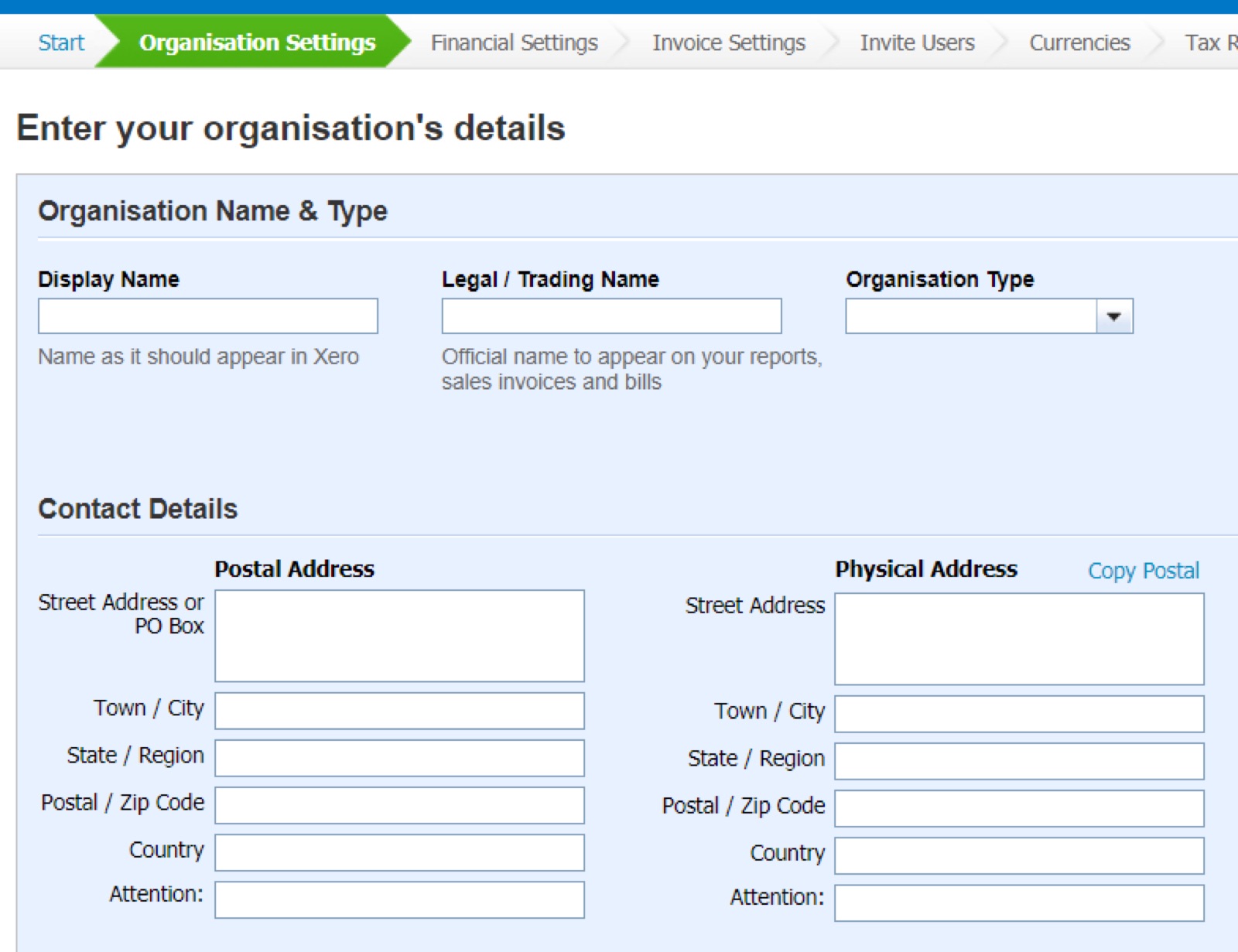
Start by entering the basic information about your organization, including legal name, address, and contact details.
Note: Once your home currency is finalized, it cannot be changed later.
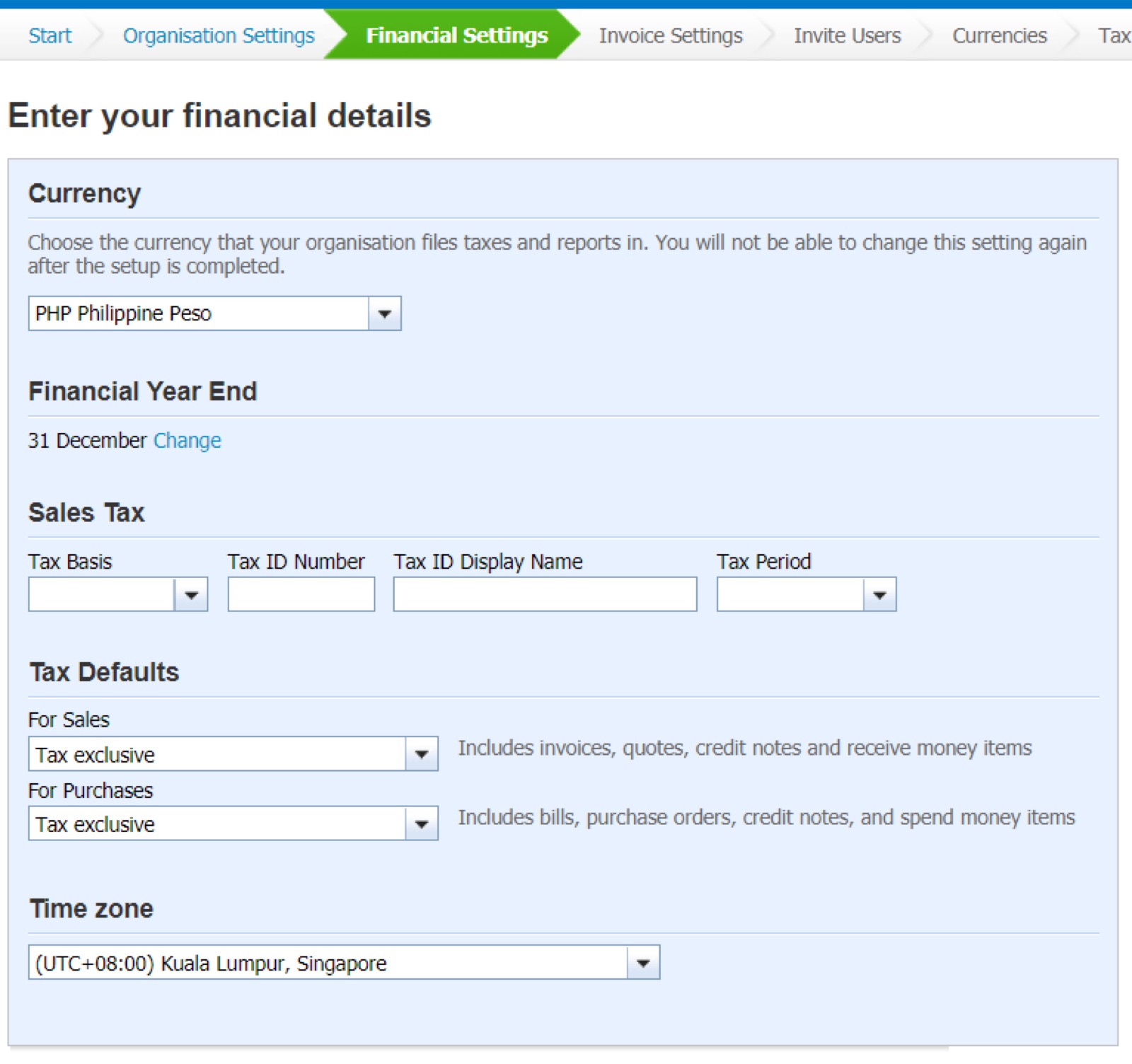
Configure your default financial settings, including currency, financial year end, and taxes.
Note: Once the organization details are finalized, you won’t be able to change the Home Currency.
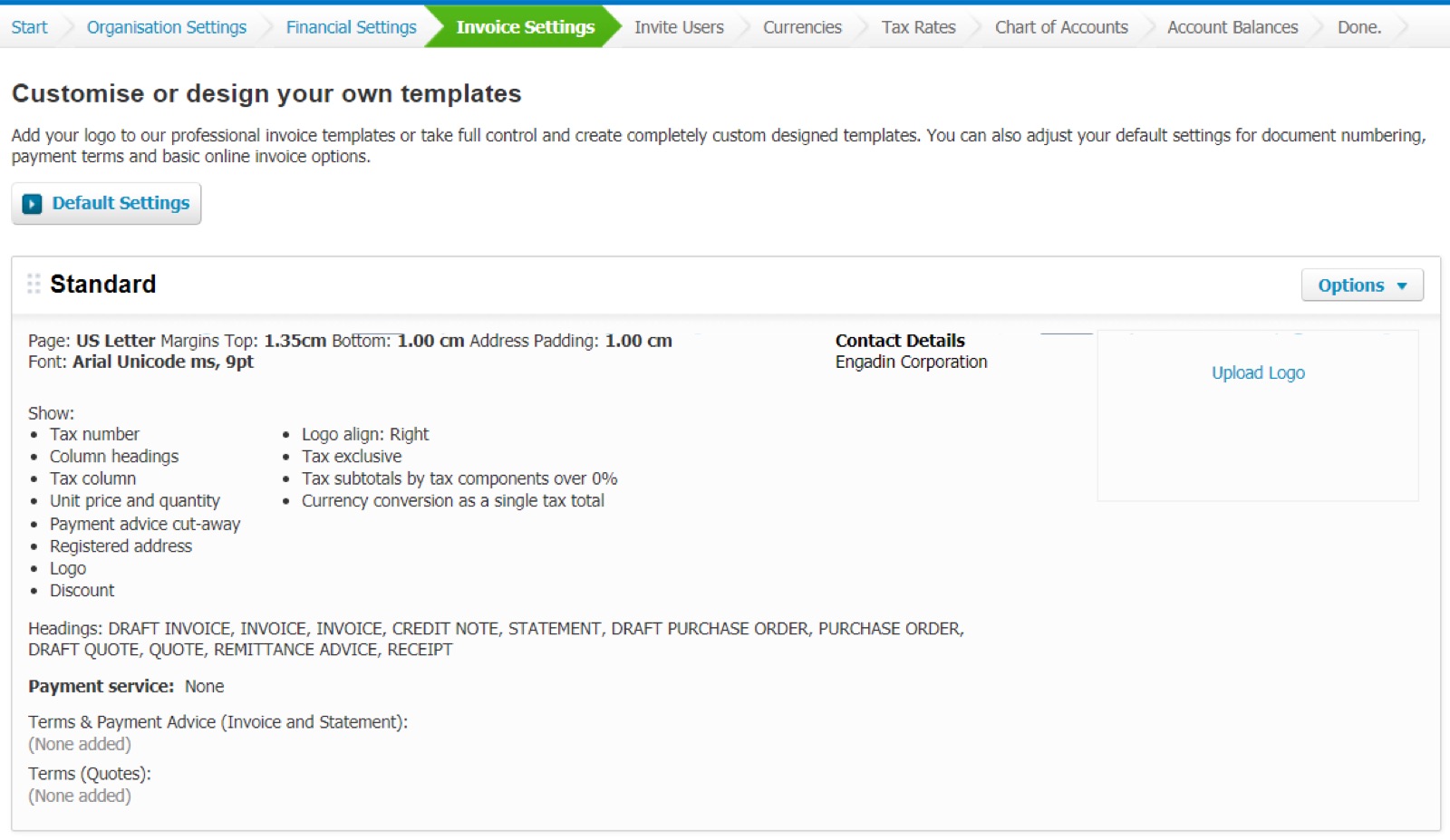
Set up how invoices appear, including default branding, numbering, and payment options.
Collaborate by inviting team members to access your Xero account and assign appropriate roles.
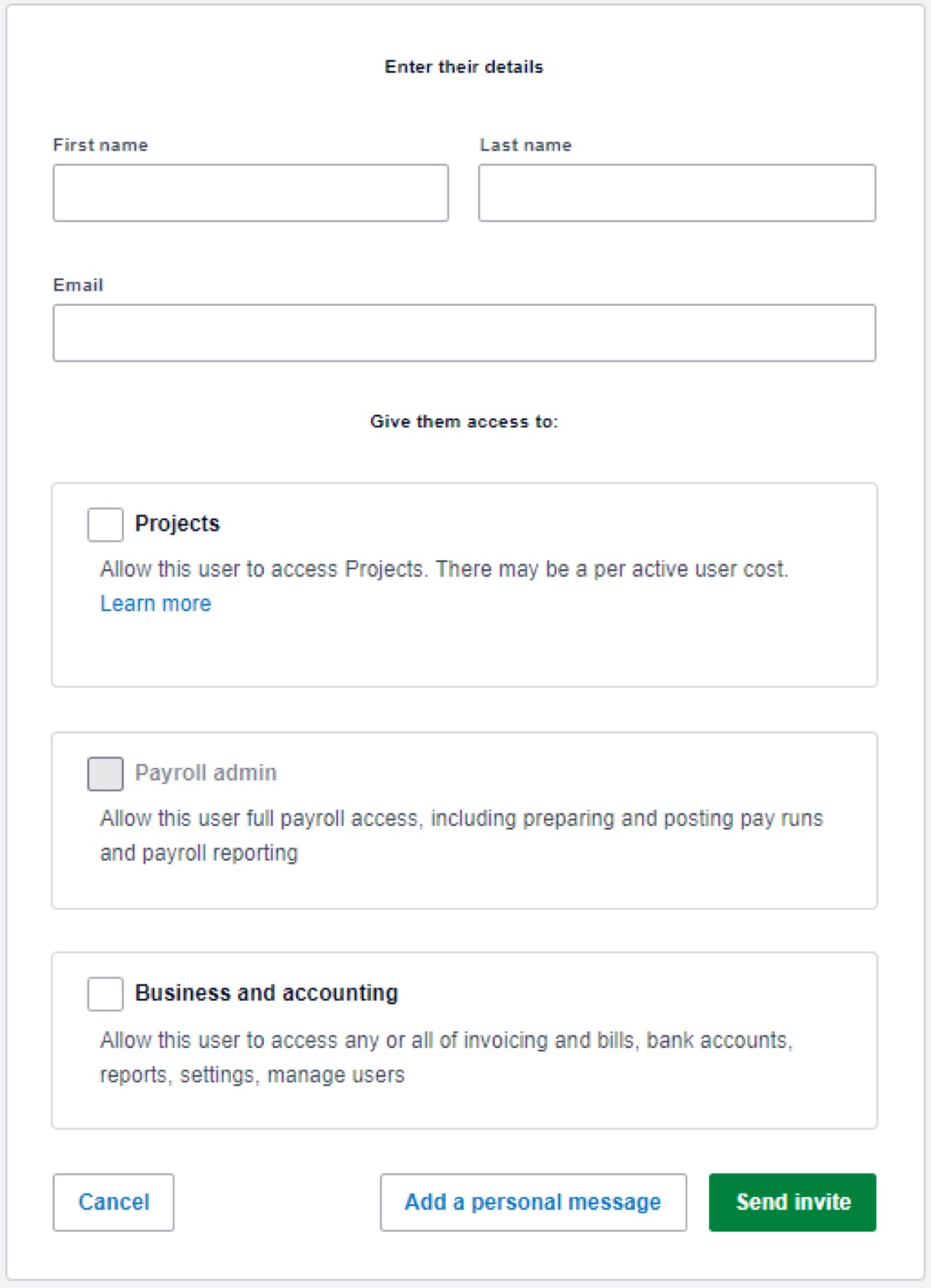
If your business deals in multiple currencies, enable the multi-currency feature.
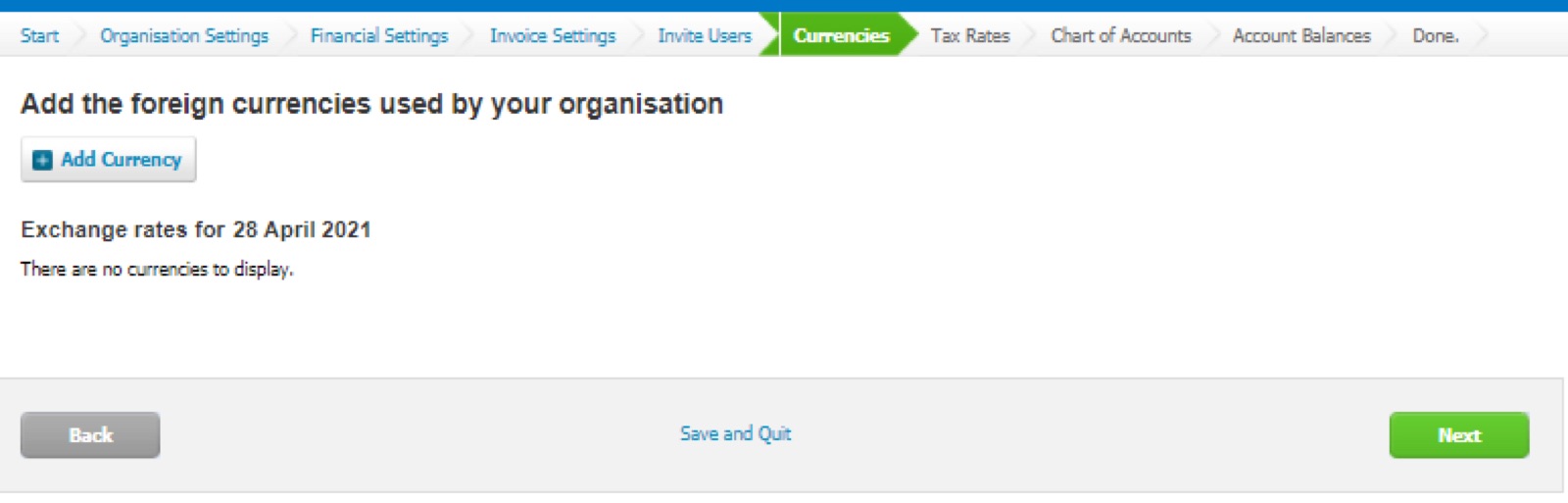
See Multi-currencies for further details.
Configure tax rates to ensure proper VAT computation and reporting for BIR compliance.

See Setting Up VAT Rates for the recommended list of rates.
The chart of accounts determines how transactions are classified and how reports are generated.
Best practice includes:
Businesses may use Xero’s default chart of accounts or import a customized version.
Note: Xero does not support sub-accounts. Tracking Categories can be used to group transactions for reporting.
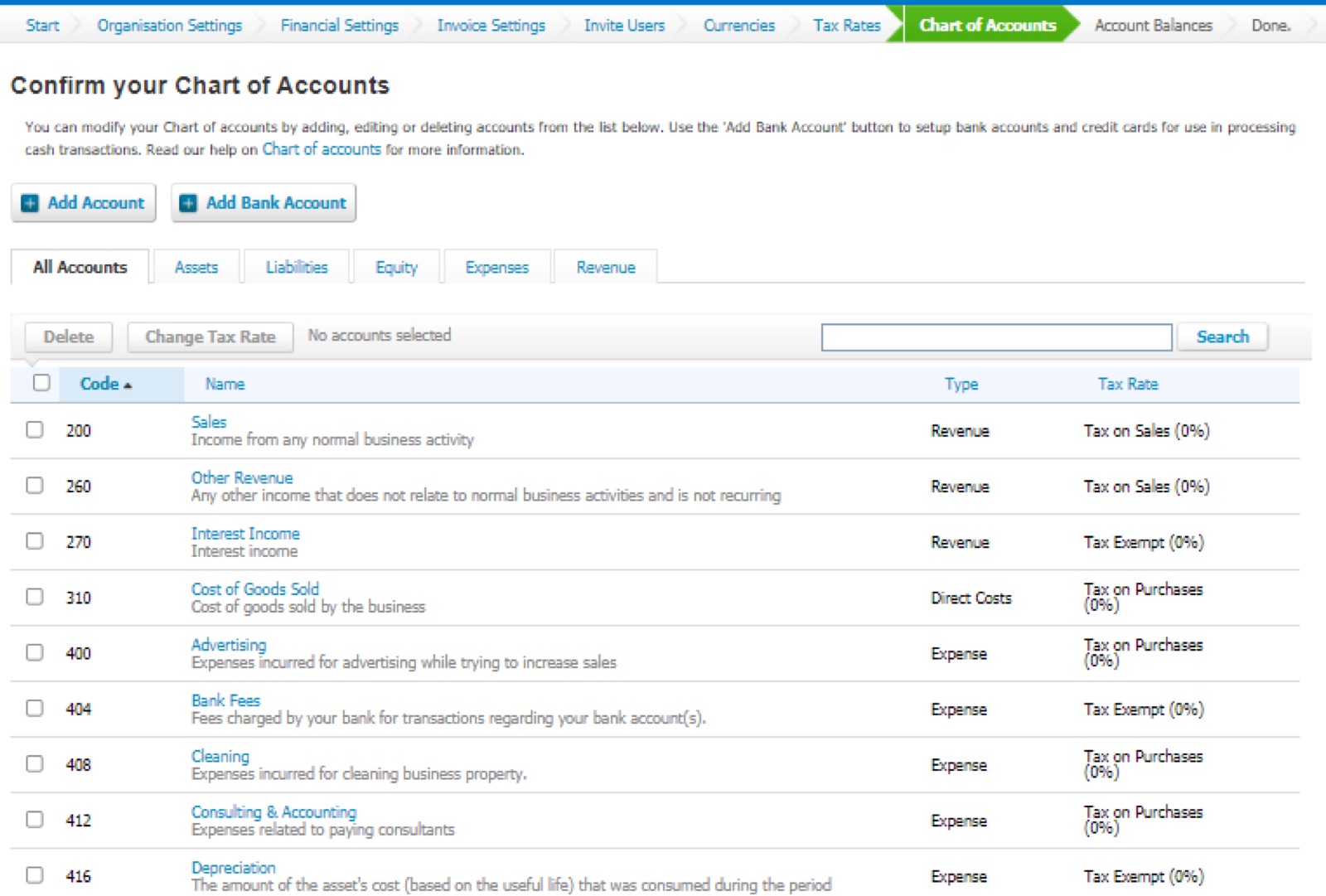
The Chart of Accounts (CoA) organizes all financial transactions in your accounting system. Proper CoA setup depends on your industry.
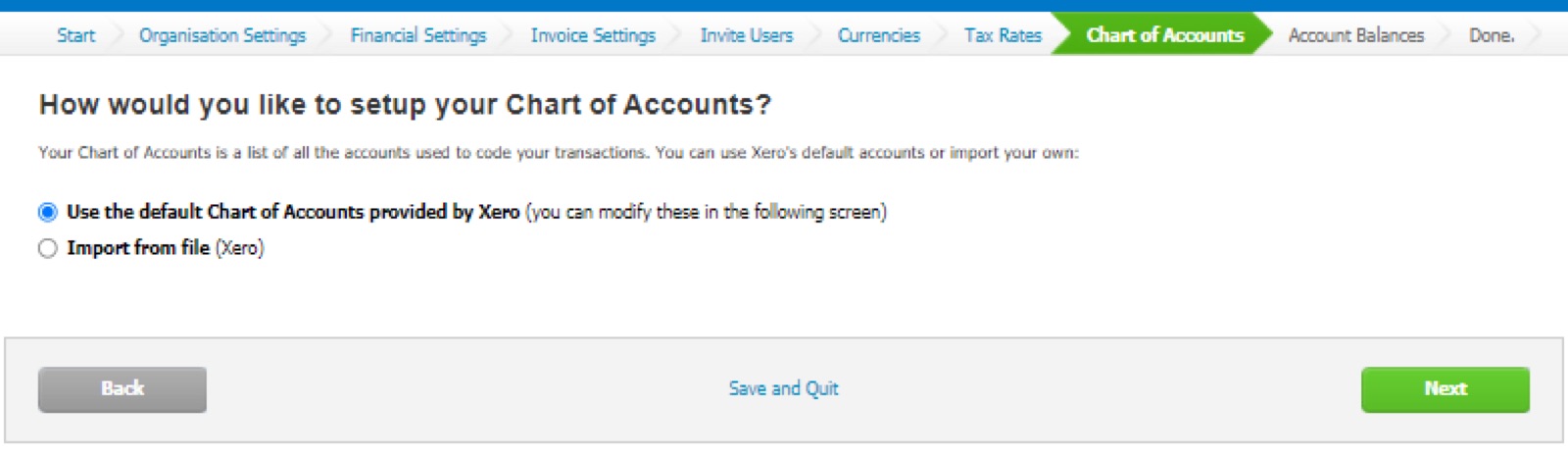
If opted to use Xero’s default Chart of Accounts with the option to modify.
If opted to import a Chart of Accounts file.
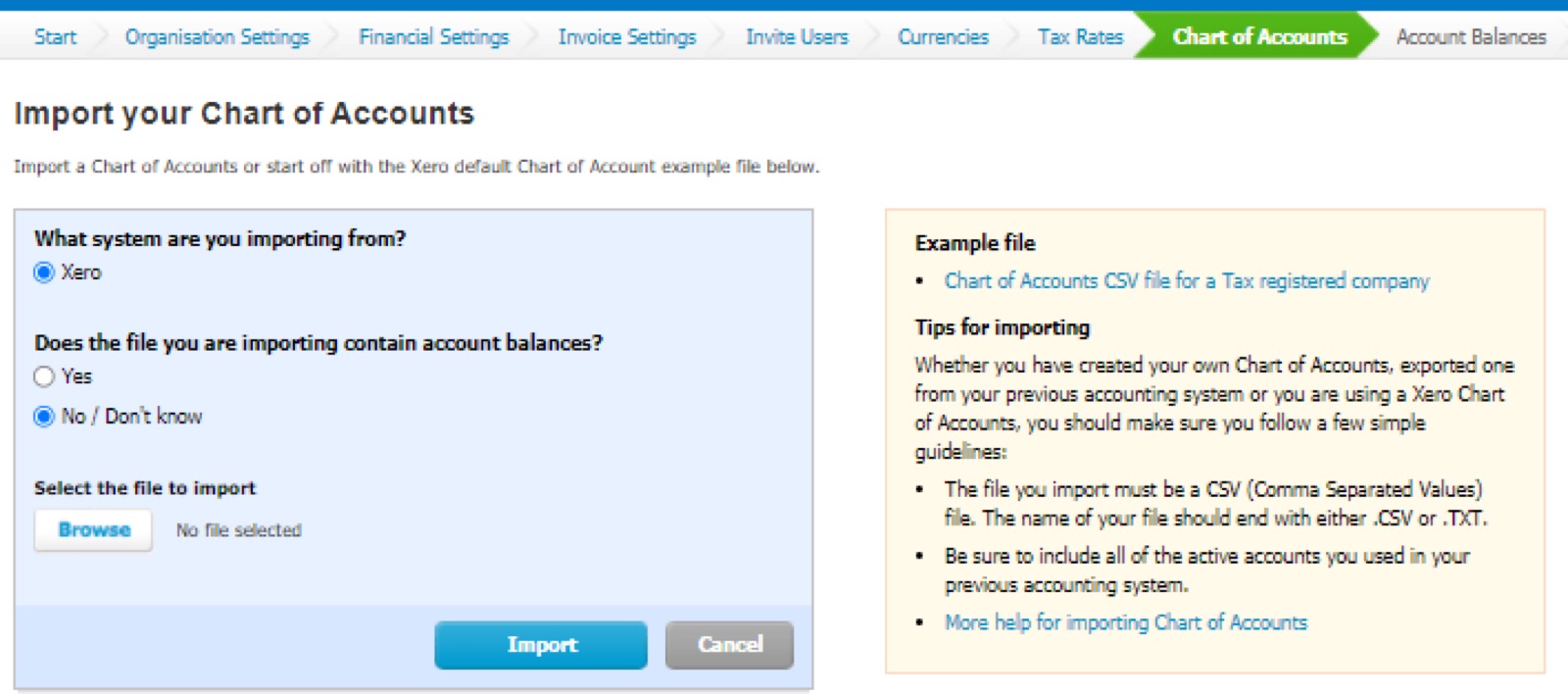
See Setting-Up Chart of Accounts for further details.
The Chart of Accounts is a complete listing of accounts which are used to organize the financial transactions. In setting-up the chart of accounts in an accounting system, there is a need to consider the industry of the company since different industries require different accounts. Here is the recommended chart of accounts for major industries.
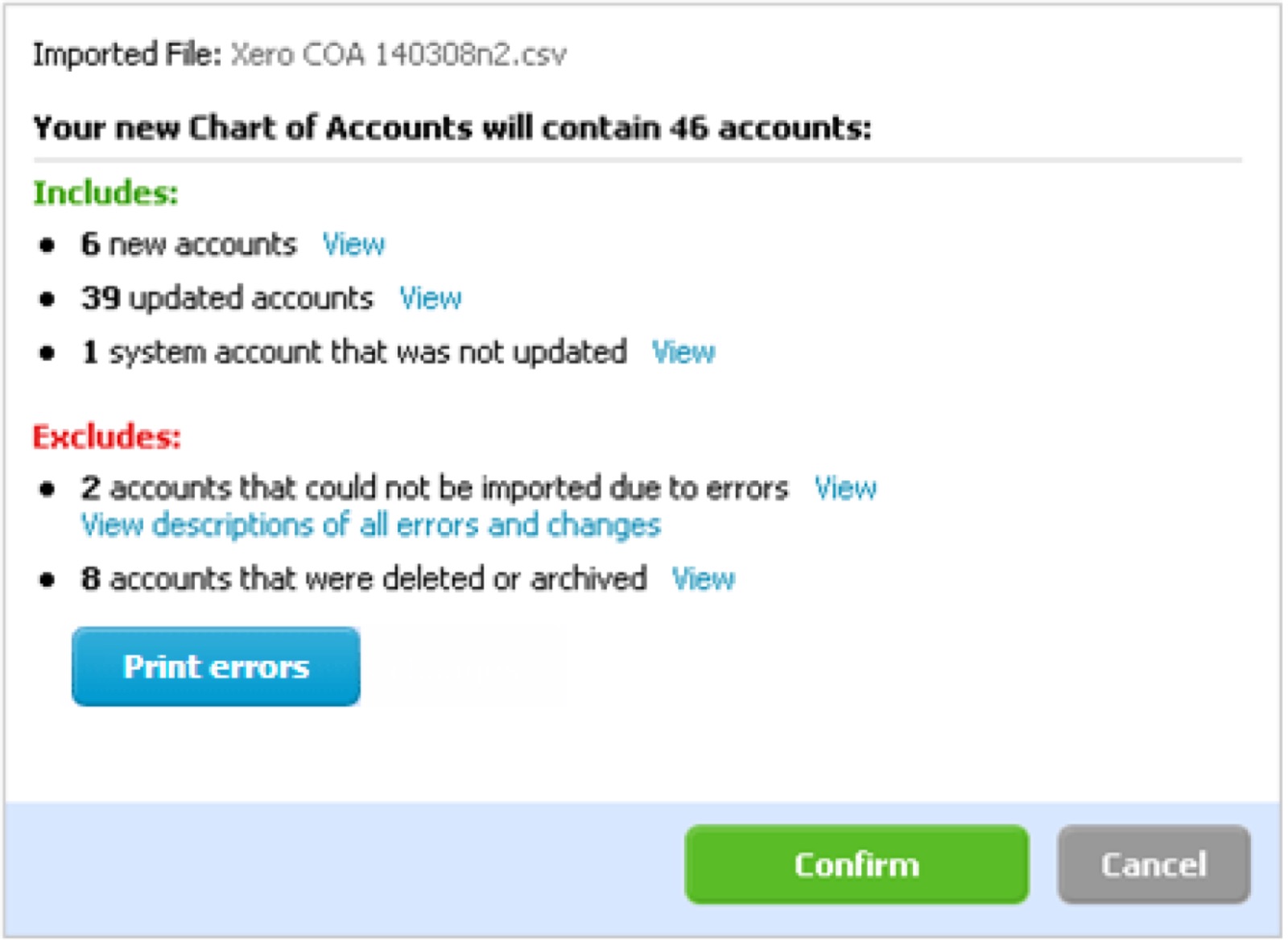
4. Click Confirm.
Note: Xero doesn’t allow subaccounts, but you can use Tracking Categories to divide accounts into particular groups.
Xero supports structured tax tracking when configured correctly, even though it is not BIR-accredited.
This stage includes:
Accurate tax configuration minimizes manual adjustments and reduces compliance risk.
One way to efficiently prepare tax computations and ensure the completeness of data is to maximize the use of the available reports from the system.
Rates should be properly set up based on the information that we need to supply in BIR VAT returns and Summary List of Sales and Purchases (SLSP).
Below is the recommended list of VAT rates.

Using the Products and Services module, Alphanumeric Tax Codes (ATC) can be set up as untracked inventory items. This will be helpful in the preparation of BIR EWT returns and Alphalist of Payees, as well as the Summary Alphalist of Withholding Tax (SAWT) as an attachment for Income Tax Return.
| Field | Data | |
|---|---|---|
| Item Code | ATC (i.e., WC120) | |
| Item Name | Leave as blank | |
| I purchase.. checkbox | Tick, if ATC is used for purchase transactions | |
| Unit Price | Tax rate in negative decimal format (i.e., -0.02) | |
| Purchase account | Select applicable account for Expanded Withholding Tax | |
| Purchase description | ATC description | |
| Tax Rate | “No Tax” | |
| I sell.. checkbox | Tick, if ATC is used for CWT transactions | |
| Unit Price | Tax rate in negative decimal format (i.e., -0.02) | |
| Sales Account | Select applicable account for Creditable Withholding Tax | |
| Purchase description | ATC description | |
| Tax Rate | “No Tax” |
For businesses transacting in foreign currencies, Xero’s multi-currency feature enables accurate tracking of exchange rate movements.
Currency revaluation allows businesses to recognize unrealized foreign exchange gains or losses without posting manual journal entries.
Multi-currency feature allows you to sell products and services to your client or buy products and services from vendors whose base currency is different from your home currency
In Xero PH, multi-currency is available only with the Premium subscription plan.
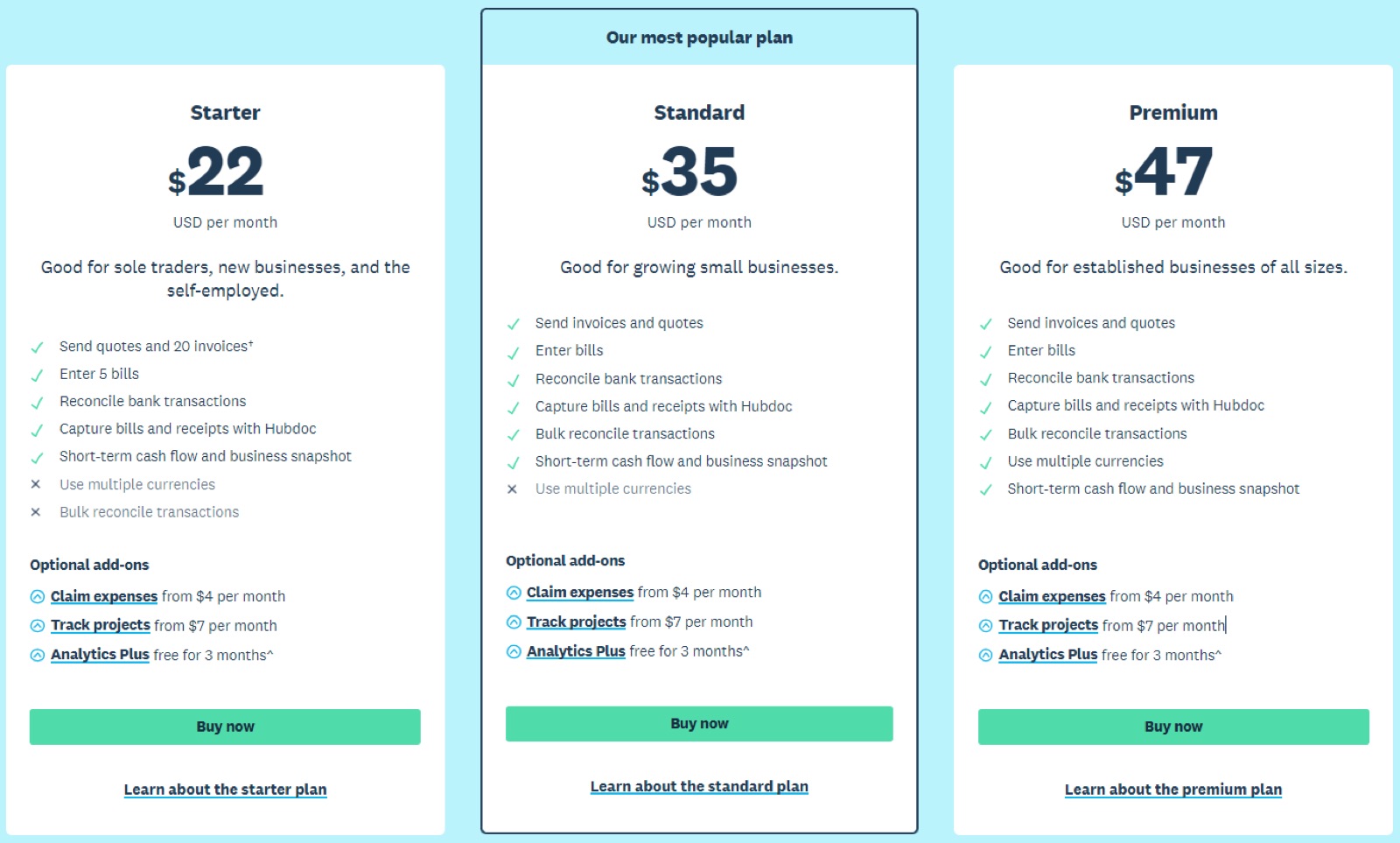
During the setting up of the organization, you will be prompted to select your home currency.

To add a foreign currency:
After setting the exchange rate for the revalue date, Xero will automatically compute any forex gain or loss, but no actual entry will be posted.
Before fully relying on Xero, reports should be validated against historical records.
This includes:
Only after validation should the system be used for live transactions.
After completing the setup, you can now start recording your financial transactions in Xero. Here are a few guides to help you get started:
Once these steps are completed, Xero becomes a reliable system for managing financial performance, compliance, and decision-making; provided it is maintained with discipline and consistency.
Xero is straightforward once the foundations are configured correctly, but setup decisions around conversion date, chart of accounts, and Philippine tax mapping are hard to “undo” later. Treat the migration like a short finance project: clean the data, follow the sequence, validate your reports, then go live with discipline. Do it right the first time, and you’ll gain reliable, real-time visibility and cleaner compliance with far less rework down the road.
Xero is straightforward once the foundations are configured correctly, but setup decisions around conversion date, chart of accounts, and Philippine tax mapping are hard to “undo” later. Treat the migration like a short finance project: clean the data, follow the sequence, validate your reports, then go live with discipline. Do it right the first time, and you’ll gain reliable, real-time visibility and cleaner compliance with far less rework down the road.
Across many implementations, similar issues appear repeatedly:
Most issues are preventable with proper preparation.
For many SMEs, the challenge is not learning how to use Xero; it is setting it up correctly so the system genuinely supports decision-making, compliance, and growth.
Based on our experience supporting over 500 Philippine businesses, Xero migrations are consistently more successful when the transition is planned, data quality is addressed early, local tax requirements are properly configured, and business owners receive structured, practical guidance throughout the process.
We hope this guide has helped you set up Xero with confidence and begin unlocking the value of forward-looking financial insights. If you need further support or a second set of eyes on your setup, our team is here to help. We have worked with Xero for more than a decade, supporting hundreds of Philippine businesses across industries. You may schedule a free consultation to discuss your next steps.
Get accurate, audit-ready books and monthly reports from a dedicated accounting team led by a Senior Accountant.
Explore this service →or book a free consultation

Questions about how this affects your business? Our team replies within one business day.



























![BIR Form 2303 or the Certificate of Registration: The Key Tax Compliance Document for PH Businesses [2026 Update]](https://cdn.prod.website-files.com/6abb649ace693a5b89cd1f0d/6acdaa89487fec15bcf8b451_6acda4b16be660d665036059_blog-bir-certificate-of-registration.jpeg)